
An SVG can describe a design at one size and be drawn at another. A PNG has a fixed pixel grid. Exporting between them means choosing that grid, checking the composition, and deciding what to do with text and resources the SVG references.
The SVG or raster guide covers which kind of file to keep. This one looks at what changes during the export.
A design with dimensions you can follow
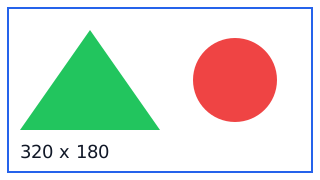
Download svg-layout.svg and open it in SVG Viewer and Code Editor. It has a triangle, a circle, a thin border, and text reading 320 x 180. Its root has these attributes:
width="320" height="180" viewBox="0 0 320 180"
The width and height give its starting dimensions. The viewBox defines the coordinate space used by the shapes. Here they line up neatly, so a point halfway across that coordinate space is halfway across the rendered image. That makes it a good sample to start with before trying artwork with a more complicated layout.
The text uses sans-serif, so its exact letter shapes can vary with the fonts available to the renderer. The paths and circle don't depend on a font. That matters when you're exporting a logo with important lettering.
Export two sizes from the vector source
Open the sample in SVG To Raster. Leave the output as PNG and Lock aspect ratio on. Set Output Width (px) to 160. The matching height is 90. Then try a width of 640, which gives a height of 360.
The exporter changes the SVG root's rendering dimensions before drawing it onto a canvas. It isn't stretching the small preview into a bigger PNG. Both output dimensions were checked in Chromium 146 on Windows using this sample.
Compare the thin border and the triangle's diagonal at each image's natural size. At 160 pixels wide, a two-unit source stroke occupies about one output pixel. At 640, it occupies about four. Antialiasing can spread an edge across adjacent pixels, so the small version won't be an exact miniature made of the same pixel values.
Use the size the destination needs, or a suitable higher-resolution copy when the destination scales it down. A PNG that's bigger than it needs to be uses more decoded memory without making the button it sits on any bigger.
ViewBox and aspect ratio affect the composition
Turn off the ratio lock and give a wide SVG a square output. With the usual SVG aspect behavior, the design can be centered with spare space rather than stretched to fill both sides. A square file doesn't necessarily mean the artwork inside became square.
Look at the border and margins in the preview. If the source has a viewBox larger than the artwork, exporting more pixels keeps that empty area too. Fixing the source bounds in your design app is often cleaner than guessing output sizes to make up for them.
This tool recognizes explicit unitless or pixel dimensions. A viewBox is the fallback when dimensions are missing. Files without usable dimensions or a viewBox start at 512 pixels per side. Check the detected size before treating it as the design's intended size.
Text and external resources need their own check
The viewer displays the SVG as an image, and the raster exporter uses that same kind of image rendering path. This isn't an interactive SVG document. MDN describes the restrictions of SVG image contexts, including disabled scripts and restrictions on external resources.
Don't expect a linked stylesheet, web font, or remote image to arrive just because it worked in an editor or a web page. Prefer a self-contained export. Convert important text to paths in the design app when its exact shape needs to survive without a font dependency. Keep the editable source too, because paths aren't a convenient replacement for editing the wording later.
This rendering behavior also doesn't mean an exported SVG is sanitized for every place you might embed it. Previewing it as an image and publishing it inline are different contexts.
Keep the source and check the saved image
PNG and WebP can keep a transparent background, but JPG uses the selected background color. The transparency walkthrough shows why that choice affects partially transparent edges.
SVG Optimizer can reduce the vector markup before export. Compare the saved SVG afterward instead of assuming fewer bytes mean an identical picture. Keep that SVG as the source, and make new raster copies from it when you need another size. Enlarging the last PNG won't bring the paths back.